Welcome to Astro
Your Google Tag Manager is now running in a web worker!
 In this guide, you will learn how to improve your Astro application's performance by integrating Partytown to offload Google Tag Manager to a Web Worker. You will go through the process of setting up a new Astro project, installing the Partytown integration, and configuring Google Tag Manager to run in a separate thread without blocking the main thread.
- [View the GitHub Example Project](https://github.com/rishi-raj-jain/astro-gtm-partytown)
## Prerequisites
You'll need the following:
- [Node.js 20](https://nodejs.org/en/blog/announcements/v20-release-announce) or later
- A Google Tag Manager account with a container ID
## Table Of Contents
- [What is Partytown?](#what-is-partytown)
- [Create a new Astro application](#create-a-new-astro-application)
- [Integrate Partytown in your Astro project](#integrate-partytown-in-your-astro-project)
- [Install Partytown using Astro CLI](#install-partytown-using-astro-cli)
- [Configure Partytown options](#configure-partytown-options)
- [Add Google Tag Manager with Partytown](#add-google-tag-manager-with-partytown)
- [Create a tracking component](#create-a-tracking-component)
- [Use the tracking component in your layout](#use-the-tracking-component-in-your-layout)
- [Test your Astro application locally](#test-your-astro-application-locally)
- [Understanding the Performance Benefits](#understanding-the-performance-benefits)
## What is Partytown?
[Partytown](https://partytown.builder.io/) is a library that relocates resource-intensive scripts into a web worker, and away from the main thread. This is particularly useful for third-party scripts like analytics and marketing tags that can slow down your website's performance. By offloading these scripts to a web worker, your main thread remains responsive, resulting in better Core Web Vitals scores and improved user experience.
## Create a new Astro application
Let's get started by creating a new Astro project. Execute the following command:
```bash
npm create astro@latest my-app
```
`npm create astro` is the recommended way to scaffold an Astro project quickly.
When prompted, choose:
- `Empty` when prompted on how to start the new project.
- `Yes` when prompted if you plan to write TypeScript.
- `Strict` when prompted how strict TypeScript should be.
- `Yes` when prompted to install dependencies.
- `Yes` when prompted to initialize a git repository.
Once that's done, you can move into the project directory and start the app:
```bash
cd my-app
npm run dev
```
The app should be running on [localhost:4321](http://localhost:4321/).
Now, let's move on to integrating Partytown in your Astro application.
## Integrate Partytown in your Astro project
### Install Partytown using Astro CLI
Astro provides a first-class integration for Partytown that makes setup incredibly simple. Execute the following command:
```bash
npx astro add partytown
```
When prompted, choose:
- `Yes` when prompted whether to install the Partytown dependencies.
- `Yes` when prompted whether to make changes to the Astro configuration file.
The command above installs the `@astrojs/partytown` package and automatically configures your `astro.config.mjs` file. The integration handles copying the Partytown library files to the correct location in your build output, so you don't need to worry about manual setup.
Now, let's move on to configuring Partytown options.
### Configure Partytown options
By default, the Partytown integration works out of the box, but you can customize its behavior for your specific needs. Open your `astro.config.mjs` file and you'll see the Partytown integration has been added:
```js title="astro.config.mjs"
import { defineConfig } from 'astro/config';
import partytown from '@astrojs/partytown';
export default defineConfig({
integrations: [
partytown({
config: {
forward: ['dataLayer.push'],
},
}),
],
});
```
The `forward` configuration is crucial for Google Tag Manager. It tells Partytown to forward calls to `window.dataLayer.push()` from the web worker to the main thread. This is necessary because Google Tag Manager uses the `dataLayer` array to send events and track user interactions.
Now, let's move on to adding Google Tag Manager with Partytown.
## Add Google Tag Manager with Partytown
### Create a tracking component
Create a new component to handle Google Tag Manager integration. Create a file `src/components/GoogleTagManager.astro` with the following code:
```astro
---
interface Props {
containerId: string;
}
const { containerId } = Astro.props;
---
```
The code above does the following:
- Accepts a `containerId` prop for your Google Tag Manager container ID.
- Loads the Google Tag Manager script with `type="text/partytown"` instead of the default `type="module"` or `type="text/javascript"`.
- Initializes the `dataLayer` array and `gtag` function that Google Tag Manager uses.
- Configures Google Tag Manager with your container ID.
The key difference here is the `type="text/partytown"` attribute. This tells Partytown to intercept these scripts and execute them in a web worker instead of the main thread.
Now, let's move on to using this component in your layout.
### Use the tracking component in your layout
Create a layout file `src/layouts/Layout.astro` to include the Google Tag Manager component:
```astro
---
import GoogleTagManager from '../components/GoogleTagManager.astro';
interface Props {
title: string;
}
const { title } = Astro.props;
---
In this guide, you will learn how to improve your Astro application's performance by integrating Partytown to offload Google Tag Manager to a Web Worker. You will go through the process of setting up a new Astro project, installing the Partytown integration, and configuring Google Tag Manager to run in a separate thread without blocking the main thread.
- [View the GitHub Example Project](https://github.com/rishi-raj-jain/astro-gtm-partytown)
## Prerequisites
You'll need the following:
- [Node.js 20](https://nodejs.org/en/blog/announcements/v20-release-announce) or later
- A Google Tag Manager account with a container ID
## Table Of Contents
- [What is Partytown?](#what-is-partytown)
- [Create a new Astro application](#create-a-new-astro-application)
- [Integrate Partytown in your Astro project](#integrate-partytown-in-your-astro-project)
- [Install Partytown using Astro CLI](#install-partytown-using-astro-cli)
- [Configure Partytown options](#configure-partytown-options)
- [Add Google Tag Manager with Partytown](#add-google-tag-manager-with-partytown)
- [Create a tracking component](#create-a-tracking-component)
- [Use the tracking component in your layout](#use-the-tracking-component-in-your-layout)
- [Test your Astro application locally](#test-your-astro-application-locally)
- [Understanding the Performance Benefits](#understanding-the-performance-benefits)
## What is Partytown?
[Partytown](https://partytown.builder.io/) is a library that relocates resource-intensive scripts into a web worker, and away from the main thread. This is particularly useful for third-party scripts like analytics and marketing tags that can slow down your website's performance. By offloading these scripts to a web worker, your main thread remains responsive, resulting in better Core Web Vitals scores and improved user experience.
## Create a new Astro application
Let's get started by creating a new Astro project. Execute the following command:
```bash
npm create astro@latest my-app
```
`npm create astro` is the recommended way to scaffold an Astro project quickly.
When prompted, choose:
- `Empty` when prompted on how to start the new project.
- `Yes` when prompted if you plan to write TypeScript.
- `Strict` when prompted how strict TypeScript should be.
- `Yes` when prompted to install dependencies.
- `Yes` when prompted to initialize a git repository.
Once that's done, you can move into the project directory and start the app:
```bash
cd my-app
npm run dev
```
The app should be running on [localhost:4321](http://localhost:4321/).
Now, let's move on to integrating Partytown in your Astro application.
## Integrate Partytown in your Astro project
### Install Partytown using Astro CLI
Astro provides a first-class integration for Partytown that makes setup incredibly simple. Execute the following command:
```bash
npx astro add partytown
```
When prompted, choose:
- `Yes` when prompted whether to install the Partytown dependencies.
- `Yes` when prompted whether to make changes to the Astro configuration file.
The command above installs the `@astrojs/partytown` package and automatically configures your `astro.config.mjs` file. The integration handles copying the Partytown library files to the correct location in your build output, so you don't need to worry about manual setup.
Now, let's move on to configuring Partytown options.
### Configure Partytown options
By default, the Partytown integration works out of the box, but you can customize its behavior for your specific needs. Open your `astro.config.mjs` file and you'll see the Partytown integration has been added:
```js title="astro.config.mjs"
import { defineConfig } from 'astro/config';
import partytown from '@astrojs/partytown';
export default defineConfig({
integrations: [
partytown({
config: {
forward: ['dataLayer.push'],
},
}),
],
});
```
The `forward` configuration is crucial for Google Tag Manager. It tells Partytown to forward calls to `window.dataLayer.push()` from the web worker to the main thread. This is necessary because Google Tag Manager uses the `dataLayer` array to send events and track user interactions.
Now, let's move on to adding Google Tag Manager with Partytown.
## Add Google Tag Manager with Partytown
### Create a tracking component
Create a new component to handle Google Tag Manager integration. Create a file `src/components/GoogleTagManager.astro` with the following code:
```astro
---
interface Props {
containerId: string;
}
const { containerId } = Astro.props;
---
```
The code above does the following:
- Accepts a `containerId` prop for your Google Tag Manager container ID.
- Loads the Google Tag Manager script with `type="text/partytown"` instead of the default `type="module"` or `type="text/javascript"`.
- Initializes the `dataLayer` array and `gtag` function that Google Tag Manager uses.
- Configures Google Tag Manager with your container ID.
The key difference here is the `type="text/partytown"` attribute. This tells Partytown to intercept these scripts and execute them in a web worker instead of the main thread.
Now, let's move on to using this component in your layout.
### Use the tracking component in your layout
Create a layout file `src/layouts/Layout.astro` to include the Google Tag Manager component:
```astro
---
import GoogleTagManager from '../components/GoogleTagManager.astro';
interface Props {
title: string;
}
const { title } = Astro.props;
---
Your Google Tag Manager is now running in a web worker!
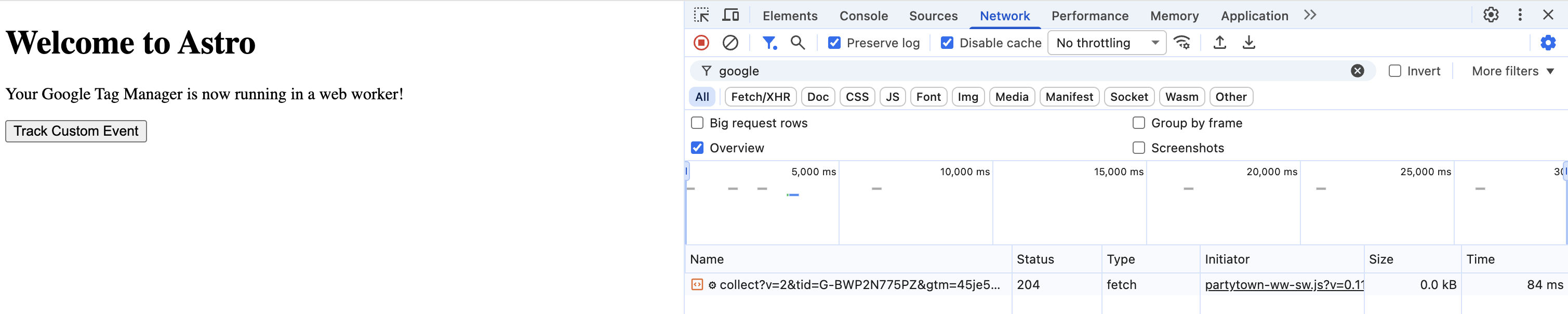 Thanks to the `forward: ['dataLayer.push']` configuration in Partytown, these events will be properly forwarded from the web worker to the main thread and sent to Google Tag Manager.
## References
- [Partytown Astro Integration](https://partytown.builder.io/astro/)
- [Google Tag Manager with Partytown](https://partytown.builder.io/google-tag-manager/)
- [Astro Partytown Integration Docs](https://docs.astro.build/en/guides/integrations-guide/partytown/)
## Conclusion
In this guide, you learned how to integrate Partytown with Google Tag Manager in an Astro application to improve performance by offloading third-party scripts to a web worker. You've also gained experience with using Astro's first-class integrations and understanding how web workers can help optimize your application's Core Web Vitals.
If you have any questions or comments, feel free to reach out to me on [Twitter](https://twitter.com/direct_messages/create/rishi_raj_jain_).
Thanks to the `forward: ['dataLayer.push']` configuration in Partytown, these events will be properly forwarded from the web worker to the main thread and sent to Google Tag Manager.
## References
- [Partytown Astro Integration](https://partytown.builder.io/astro/)
- [Google Tag Manager with Partytown](https://partytown.builder.io/google-tag-manager/)
- [Astro Partytown Integration Docs](https://docs.astro.build/en/guides/integrations-guide/partytown/)
## Conclusion
In this guide, you learned how to integrate Partytown with Google Tag Manager in an Astro application to improve performance by offloading third-party scripts to a web worker. You've also gained experience with using Astro's first-class integrations and understanding how web workers can help optimize your application's Core Web Vitals.
If you have any questions or comments, feel free to reach out to me on [Twitter](https://twitter.com/direct_messages/create/rishi_raj_jain_).